Data Backup and Storage
Our lives seem to revolve around computers more and more everyday, making us more and more vulnerable to the imperfections of technology. This article deals with threats surrounding our information and the measures we can take to prevent its loss.
History of Information Storage
Before the appearance of written records, individuals relied solely on oral tradition to preserve knowledge and historical accounts for the future generations. History reveals that humans experimented with other methods of passing on information like painting on cave walls and creating depictions on pottery. Today people associate information storage with quite a recent development — the computer. Though this technology has existed for only short time, the evolution of information preservation has long been in progress and of high priority for civilization.

As early as 3,000 BC the Egyptians used one of the first mediums for keeping reliable written records — papyrus. Papyrus, paper's predecessor, was made from the Cyprus papyrus plant and widely used in the Mediterranean and Middle East, which both share a rather dry climate. Papyrus was preserved exceptionally well in the dry conditions, making it an ideal form of paper and means of storing information. Parts of the Dead Sea Scrolls, written before 100 AD and discovered in the mid-20th century, were written on papyrus, enduring almost two millenniums. Papyrus remained widespread until the appearance of two other mediums — parchment and paper.
It is believed that in the first few years of the second century AD the Chinese invented paper. The exact year of its creation is not known. They made paper out of a pulp consisting of water and the bark of a mulberry tree. Paper became superior to papyrus due to its lightweight and ability to hold up in moist climates. Paper moved west quite quickly and reached Europe by the eighth century AD making way for the next major innovation in the world of information preservation — the printing press.

Though primitive devices for mass printing had appeared between 700 and 800 AD, Johann Gutenberg changed the world of information preservation in 1440, when he invented the printing press. The printing press utilized moveable metal type. These metal pieces could be used many times, simplifying and speeding up the printing process. Gutenberg's press put knowledge into the hands of the masses very quickly and at a low price, triggering the spread of literacy throughout Europe.
After the invention of the printing press, time brought with it many new forms of spreading and preserving information, including the phonograph, punch card, and magnetic tape. But the next notable and significant innovation in the information world came in 1956, when IBM released the 350 disk storage unit, the grandfather of modern hard drives. This early hard drive stored a bit over four megabytes. Today's hard drives store as much as up to 10 terabytes.
Since then many other mediums of information storage have appeared, including floppy and optical discs, multimedia cards, flash drives and many others. The demand for new, more efficient information storage devices grows everyday as civilization acquires more and more knowledge. In addition to providing new ways of storing this knowledge, the ease of using this technology has given way to an abundance of useless information — saving outdated files, unwatched films, and other useless things has become cheap. However, this ability to store information and knowledge gives people a sense of security and hope for tomorrow and generations to come.

Data Loss
Though the world now possesses an abundance of information storage devices, we still remain at risk of data loss. Data loss is defined as the unintentional loss of data caused by file corruption, hardware failure, human error or site-related events, such as fire or theft.
Hard Disk Drive (HDD) and Solid-State Drive (SSD) Failure
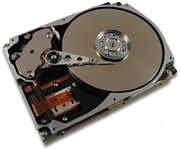
Many people know that hard and solid-state drives crash but very few understand why. In general, there are two types of hard drive failure — logical and physical.
Logical disk failure typically occurs due to system-file corruption, which can be caused by viruses or the accidental deletion of key-files. Though rare, logical failure can also happen as a result of electro-static discharge. In the event of logical failure, the actual drive is healthy and recognized by the computer but appears inaccessible due to the corrupt or fragmented files. If you experience logical drive failure, it is recommended not to use repair utilities, as this can worsen the problem. You should contact a disk data recovery specialist as soon as possible.
Physical disk failure occurs when the storage media has incurred some kind of physical damage. Distinguishing between physical and logical disk failure can be quite easy. Unlike logical hard disk failure, the drive is usually not recognized by the computer. Generally, this type of hard disk failure can be grouped into two primary categories — mechanical and electronic. The most common reason for mechanical failure is a head crash, which occurs when the read-write heads come into contact with the platters of the hard disk. Another common form of mechanical failure is spindle motor malfunction. Mechanical failure is typically accompanied by grinding or clunking sounds, or by a loud high-pitched whine.
Electronic failure most often occurs due to power surges or faulty circuit board components. Another issue that can play a role in electronic failure is excessive heat and poor ventilation. Like logical hard disk failure, physical hard disk failure is usually beyond the average computer user's abilities and should be handled by a hard disk data recovery specialist.
Avoiding Data Loss
The majority of disasters are unforeseen and rarely can the user prevent such events as hard drive failure or site related disasters. Nevertheless, the user does have a limited bit of control over data loss. In fact, data loss can often be prevented if one takes the proper measures. The trick is taking action before a disaster occurs, because once data is lost — it can't be recovered. The most reliable and efficient way of protecting your data is quite a simple process of which most users have heard — backup.
What Is a Backup?
Backup is a term used to denote the process of creating copies of data that can later be restored in the event of data loss. A backup can be as simple or complicated as you want to make it. Saving a copy of a file in a different location on the same hard disk could be an example of a very simple backup, whereas more complex backups may include servers, off-site storage, and even paid guards!
Backups prove very useful and important in our everyday lives, considering the fact that our computers often hold gigabytes of irreplaceable information, such as personal and confidential information, financial records, years of memories in the form of pictures or videos, etc. When it comes to business, data loss can potentially cost a company hundreds of thousands of dollars or more. Keeping this in mind, it's best to keep yourself protected by backing up data on a regular basis.
Though backing up your data is necessary and useful, one has to keep in mind that creating backups has its minuses. The first and most relevant disadvantage is that backing up data takes up quite a bit of time and has the potential to use a lot of space and money. Another snag is the delusion of being completely protected against data loss. This misconception can be quite dangerous for businesses and average users because although there are new available resources for protecting data, in the end, no one will be saved. So when it comes to backup, one must hope for the best and prepare for the worst.
Though there are many terms to denote various types of backup, there exist three basic types of backup — full, incremental, and differential, all of which may prove useful in different situations.
Full Backup
Every type of backup starts with a full backup. Therefore, full backups are typically part of an overall backup plan. A full backup creates copies of all data a user has selected for backup. Unless the user chooses to use compression, the backup file size will be equal to that of the original data. The advantage to this type of backup is that it allows you to easily and quickly restore your data. The down side is that creating full backups tends to be a long process, requiring the user to have a large backup window (the amount of time reserved for backup). In addition, creating a series of full backups requires a storage device with a significant amount of disk space, which can be expensive.
Incremental Backup
An incremental backup starts with a full backup. Incremental backups are generally done periodically according to a schedule. This type backs up only those files that have changed since the last backup of any type, be it full or incremental. The advantage to incremental backups is that it takes very little time to back up your files after the initial full backup, requiring a smaller backup window. Concerning the archive size, incremental backups are optimal, as they require less disk space.
Differential Backup
A differential backup is similar to an incremental backup. They both back up only data that has been changed. The difference is that a differential backup backs up only those files that have been changed after the last full backup. This offers many users a happy medium between full and incremental backup. Differential backup offers the user both a reasonably short backup and restoration time. Nevertheless, this option requires more disk space than incremental backups, but less than full backups.
Learn more about backups in Wikipedia.
Which Files Should I Back Up?

This question arises every time a user wants to back up his or her precious files. The first step to answering this question is thinking about how long it took to gather the data. Things like financial records, address books, digital photographs, and Internet browser bookmarks are accumulated over long periods of time and should have high priority. In addition to this, you should consider whether or not files are of any financial importance. This answers the question of what you should back up. But what about those files which you should not back up?
Users tend to save a lot of unnecessary files “just in case”. Though there is nothing wrong with this in principle, backing up data costs money and it may not be profitable or reasonable to keep files that you no longer need. Some examples might be files from previous jobs, rough drafts of already completed projects, or files compatible only with discontinued software. If you nevertheless wish to back up files compatible with discontinued or rather unpopular software, you should either save the files in a more modern and widely used format or back up the program installation files as well. Otherwise, you may not be able to open the files in the future.

How Often Should I Back Up My Data?
The answer to this question differs for each person. One of the main factors is how often and to what extent your files change during a certain period of time. A user who spends eight to twelve hours per day working at his computer should ideally back up his files more often than someone who works at his or her computer five to ten hours per week. Another important question is how much time you can devote to the backup process. The ideal time to back up data is when a computer is not in use. If you have a small backup window, you may not be able to back up your data very often. You must weight out the need to back up data frequently, the risk of data loss, the availability of time and decide from there. In general, it is recommended that average computer users back up their data once per week. The day and time depends on you and your needs. As a general rule, you should back up your files at the end of the last workday of the week. In the end, it all comes down to one question — how much are you willing to lose?
Types of Storage Devices
Aside from choosing the right backup type and schedule, it is also important to put some thought into the storage device where the data will be saved. A backup is only as good as the device on which it is stored, so below is some information concerning the most modern storage mediums on the market.
External Hard Disks
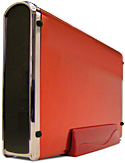
An external hard disk is a hard disk separate from your system which more often than not connects to your computer using the USB, FireWire or Thunderbolt port. The storage capacity of modern external hard drives can be as high as ten terabytes. With a low cost per gigabyte, external hard drives are a great choice for large backup archives. In addition, these hard drives are quite compact and portable, making it quite simple to transport to and from work, keeping backed up data in a separate place from the source.
Though external hard drives are quite durable, they can still be dropped and damaged. An external hard drive has moving parts, making it susceptible to much of the same physical malfunctions as internal hard drives. Despite a low cost per gigabyte, external hard drives may not be optimal for smaller backups.

Solid-State Drives (SSD) and USB Flash Drives
There exist USB flash drives and SSD. USB flash drives offer customers a very convenient and portable way of transferring and storing information at a relatively low price. SSD is a replacement of the hard disks. They work faster than hard disks but are more expensive.
CD Technology
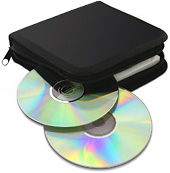
CDs are optical discs used for data storage. Discs that can be written on once are known as CD-Rs. Those that can be written to multiple times are called CD-RWs. The typical storage capacity for these discs is 700MB. CDs are lightweight and portable, allowing for the convenient movement of backup archives. Concerning the cost of using CDs as storage media, they have a relatively low cost per unit and therefore are ideal for both small and large backups. In addition, most modern computers come with CD-R/RW drives.
If a computer doesn't have a CD-R/RW drive you'll need to buy one, which can be a hefty investment. One disadvantage of CD-RW discs is that the human error factor still plays a role as files can be deleted and written over. Moreover, CD-RWs become less and less reliable with each use. CDs are failure-prone due to degradation caused by external factors such as handling the discs and environmental factors. Just like USB flash drives and external hard drives, CDs have inherent risk due to portability.
In 2006 Blu-ray discs were introduced. The capacity of a Blu-ray disc starts from 25 GB. A separate drive and software is required for burning information on these discs.
DVD Technology
Like CDs, DVDs are optical discs used for data storage. One main difference, however, is that DVD discs hold a significantly larger amount of data than CDs. Single-sided single-layer DVDs hold up to 4.7 gigabytes. A single-sided double layer DVD holds up to 8.50 gigabytes. DVDs also come in both recordable (DVD-R) format and rewritable (DVD-RW). DVDs are lightweight and convenient due to their portability.
Not all modern computers have DVD writing drives which means that you may need to buy one. DVD-RWs are not recommended for archival use since they become less and less reliable with each recording. Like CDs, DVDs are failure-prone due to degradation caused by external factors. Due to their small size and portability, DVDs can easily be lost.
Online Storage
Many companies offer users the opportunity to back up their data in their data centers via Internet. These archives are stored offsite, protecting you from disasters in your own home or office. One of the most attractive advantages is that as a rule, you can access your data from multiple locations.
One of the most uninviting aspects of storing backups online is the uncertainty of your data's safety. If the company's servers go down you may not be able to access your information, which may cost you a lot of time or money in a concurrent data loss event. Perhaps more frightening than this might be hacking. If the company were to be hacked, your information could be stolen, possibly making you a victim of identity theft or giving away the secrets of your company's business plan. In addition, if the data storage company goes out of business, you'll lose your backup archive and be forced to start from zero again. Apart from this, the monthly fees for using such services can be sky high.
Which Backup Storage Media Is Right for Me?
Remember those absurdly large round, plastic things called records? What about 8-track cartridges? 8-inch floppy disks? Though you can easily find this media, it can be difficult to find players and drives in working condition. Users are faced with this problem when they back up their data, as there is no use in storing your archives on media that will not be used in five to ten years. However, it's impossible to avoid the freight train advancement of technology. Concerning more short-term plans, you should consider how much data you need to store, how much money you can afford to invest in your backup, the maximum acceptable restoration time, the reliability of the device, and the possibility to store it offsite.

One question that everyone needs to ask when choosing a backup storage device is how long the device stores data. The answer to this question is not a simple one. If hard drives really retained data and worked properly as long as the manufacturers said, users would invest money into calendars instead of backup strategies. The fact of the matter is that data retention depends on a number of factors. One of the main factors is the quality of the product itself. As they say, you often pay for what you get. If you buy your backup media from a dependable, high-quality manufacturer, you'll maximize the retention of your data on that device. Another factor of equal importance is the conditions in which you keep the storage media. When it comes to CDs and DVDs, for example, it is recommended that you store them away from bright light sources, as they are quite vulnerable to light, especially sunlight. In addition, you should always store them in their cases to avoid scratching and chipping. Another important factor is dust and water, so you should store them in a closed box or cabinet. You should certainly store any storage media at room temperature, avoiding extremities of hot and cold. If you take such measures to protect your media, it will retain data and function properly much longer.
Taking all of these factors into consideration, you shouldn't keep all of your eggs in one basket. The safest answer may be that it's best to use a number of different storage devices. However, that may not be realistic, which is why a good option for the average user is to use an external hard drive with a minimum of 320GB to minimize the transfer time.
What About the Future?
Perhaps in the coming years we will see innovative storage devices offering even more reliable methods of keeping information safe. Maybe computers will have a longer lifespan than humans. Ideally, there will come a day when we will not have to think about backing up data. However, considering the variety of incidents against which we try to insure ourselves by creating backups, backup will always be a necessary, and at the same time, futile procedure, as the problem of human error and natural disaster cannot be solved as easily as faulty hard drives and fragile discs.
Ray East III
Last reviewed: December 2015 by Irene Stepanovska